



Photoshop experts help

Thread Starter
Racer

Joined: Jan 2006
Posts: 484
Likes: 0
From: Northeastern Mass
 Photoshop experts help
ok i am new to photo shop. after I outline someting with the lasso how do I move it to say another pic or to a different part of the same picture. only the outline moves when i try

Instructor
Joined: Dec 2004
Posts: 175
Likes: 0
From: Fort Myers FL
you have to be on the move command. You're probably still clicked on the lasso button, and just are clicking inside it trying to move it....that won't work. The Move button is the black arrow at the top right of your tool pallete. After you lasso what you want, then click on that black arrow, then you should be able to move it, and drag it into another window if you want.

Melting Slicks


Joined: Feb 2005
Posts: 3,467
Likes: 43
From: Auburn MA
after its outlined you can move it in several ways but i usually copy and paste it in a new layer... however you can also click on the arrow tool and drag it around or use the arrows to bump it around.
Thread Starter
Racer
Joined: Jan 2006
Posts: 484
Likes: 0
From: Northeastern Mass
thanks it worked. Ahh the relief of not feeling like an idiot. i can program a website such as you guys can see, i can write poetry, get all a;s and b's in a pre med program but can move a lassoed picture in photoshop

Le Mans Master

Joined: Dec 2000
Posts: 8,740
Likes: 2
From: Minneapolis MN
Get this, its kind of basic but will get you very familiar with the tools and you can develop beyond this. Its a great book to start with.
http://search.barnesandnoble.com/boo...21321847&itm=3
http://search.barnesandnoble.com/boo...21321847&itm=3

Race Director


Joined: Aug 2003
Posts: 13,421
Likes: 8
From: Lake Mary Florida
Like asking questions about the C4 it's important to state what year, likewise with PS different versions have different features.
The smart lasso tool is effective when attempting to isolate an object from an image without grabbing a lot of background pixels. You may have noted that when you click on the tool in tool pallete some have mutliple tools there.
If you have two separate images open you should be able to drag the selected object from one image directly to the other (you'll need to have a decent size display and have both images exposed, but the object should come over to the second image in it's own layer. Similar to cut and pasting.
The smart lasso tool is effective when attempting to isolate an object from an image without grabbing a lot of background pixels. You may have noted that when you click on the tool in tool pallete some have mutliple tools there.
If you have two separate images open you should be able to drag the selected object from one image directly to the other (you'll need to have a decent size display and have both images exposed, but the object should come over to the second image in it's own layer. Similar to cut and pasting.
Melting Slicks
Joined: Feb 2005
Posts: 3,467
Likes: 43
From: Auburn MA
Originally Posted by n1kki6
Don't use the lasso. Then pen tool is your best friend once you learn how to use it and use paths.
TIP:I usually go to Select window and hit the feather tool for a couple of pixels depending n the image i am selecting and that will feather out some of the rough edges.
Last edited by Impala Balko; Jun 10, 2006 at 12:51 PM.
Corvette Stories
The Best of Corvette for Corvette Enthusiasts

Top 10 Most Expensive Corvettes Ever Sold on Bring A Trailer
Brett Foote
10 Things Every Corvette Owner Needs (2026 Edition)
Michael S. Palmer
8 Most "Only Corvette Owners Understand" Quirks and Problems
Pouria Savadkouei
10 Reasons the C6 Z06 is Still A Performance Benchmark After 20 Years
Joe Kucinski
How Much Horsepower Every Corvette Engine "LOST" in 1972
Joe Kucinski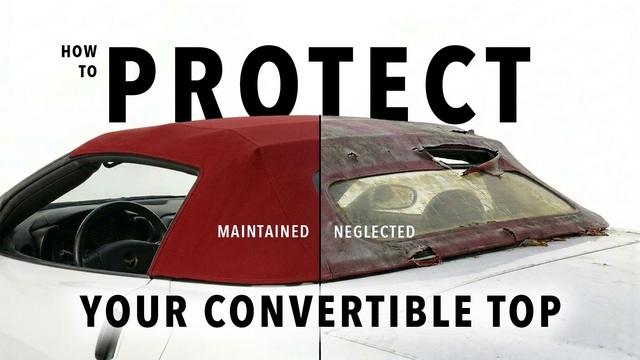
Top 10 DOs and DON'Ts for Protecting Your Convertible Top!
Michael S. Palmer
Top 10 Most Explosive Corvettes Ever Made: Power-to-Weight Ratio Ranked!
Joe Kucinski
150 hp to 1,250 hp: Every Corvette Generation Compared by the Specs That Matter
Joe Kucinski
8 Coolest Corvette Pace Cars (and Replicas) of All Time
Verdad Gallardo
Le Mans Master
Joined: Dec 2000
Posts: 8,740
Likes: 2
From: Minneapolis MN
Originally Posted by Impala Balko
The pen tool is effective in creating vector masks or shapes and you can ceate a clipping mask using the paths but it is far easier and just as effective to use the lasso tools. If you want to outline something in a picture in photoshop you ar using either the regular lasso, magnetic Lasso (which is good for something with a clearly defined outline), or my personal favorite the Polygonal Lasso which allows you to click to set points. you can select boxes circles and whatnot with the Rectangular, Eliptical, single row, and single column Marquee tool but they are not as practical as the Lasso tool.
TIP:I usually go to Select window and hit the feather tool for a couple of pixels depending n the image i am selecting and that will feather out some of the rough edges.
TIP:I usually go to Select window and hit the feather tool for a couple of pixels depending n the image i am selecting and that will feather out some of the rough edges.
Race Director
Joined: Aug 2003
Posts: 13,421
Likes: 8
From: Lake Mary Florida
The Pen tool is in Photoshop, its just below the pointer tool and above the notes tool on the left side of the tool palette. Underneath it is five flavors of the pen tool. You can use the bezier curve function of the pen tool to tightly select objects then convert the path to a selection. You can also bring all your live paths over from Illustrator and manipulate them within PS. Ref CS1 and CS2.
Melting Slicks
Joined: Feb 2005
Posts: 3,467
Likes: 43
From: Auburn MA
Originally Posted by n1kki6
Serious? I can use the lasso tool much faster and far more accurate than the lasso. Its not always used for vector masks, I see more people use it to make paths and then create selections out of them. The lasso is an amature tool and using the polygon lasso is the cheap mans pen tool. You can set different options for the pen tool.