

Corvette Forum Help Guide


Thread Starter
IB Staff


Joined: Feb 2009
Posts: 10,582
Likes: 4
 Corvette Forum Help Guide
Using Avatars, Profile Pictures and Signatures
Please see: http://forums.corvetteforum.com/1582122319-post2.html
Using Photo Albums on Corvette Forum
Please see: http://forums.corvetteforum.com/1582122323-post3.html
Common Corvette Forum Help Questions
Question: Why doesn't my signature always display?
Answer: Administrators have asked that signatures be reduced to only one-time, per thread, per poster. This is to avoid unnecessary cluttering of a thread with redundant signatures.
Whenever you desire your signature to appear, you'll have to manually enable the Show Signature option whenever you post:

Tip: Make sure you have Display Signatures enabled in your account or you will not see any signatures at all. To check this option:
1) On the Navigation bar, click on the User CP link: http://forums.corvetteforum.com/usercp.php
2) Click on Edit Options link: http://forums.corvetteforum.com/prof...do=editoptions
3) Under Thread Display Options - Visible Post Elements - make sure a checkmark is in Show Signatures option.
Question: What do all the Icons & Symbols mean?
Answer:
Threads that you have participated in will display an arrow within the status icon:
 - Thread has no new posts. You have participated in this thread.
 - Thread that has unread/new replies. You have participated in this thread.
 - Thread that has unread/new replies. Orange colorization means the thread is also considered a hot topic (500+ views or 50+ replies). You have participated in this thread.
 - Thread has no new posts. Orange colorization means the thread is also considered a hot topic (500+ views or 50+ replies). You have participated in this thread.
 - Thread is locked (no replies allowed). Thread that has unread/new replies. You have participated in this thread.
 - Thread is locked (no replies allowed). Thread has no new posts. You have participated in this thread.
Threads that you have not participated in will not have an arrow in the status icon:
 - Thread that has unread/new replies. You have not participated in this thread.
 - Thread with no new posts. You have not participated in this thread.
 - Thread that has unread/new replies. Orange colorization means the thread is hot (500+ views or 50+ replies). You have not participated in this thread.
 - Thread with no new posts. Orange colorization means the thread is hot (500+ views or 50+ replies). You have not participated in this thread.
 - Thread is locked (no replies allowed).
 - Thread that has been moved to another section.
Next to the above you'll find a few more:
 - Click on that icon, next to a thread, to direct your browser to the first unread post in a thread.
 - The thread contains file "attachments". This does not include an images hosted off site (hotlinked).
 - Thread has been associated with a few "tags" (keywords) for assistance with grouping/searching for keywords/information.
 - You are subscribed to the thread.
Some other misc icons:
 - Member is online
 - Member is offline
 - Click on this icon, located to the left of each post, if you feel the post needs Moderation attention (for forum guideline violations).
Please see: http://forums.corvetteforum.com/1582122319-post2.html
Using Photo Albums on Corvette Forum
Please see: http://forums.corvetteforum.com/1582122323-post3.html
Common Corvette Forum Help Questions
Question: Why doesn't my signature always display?
Answer: Administrators have asked that signatures be reduced to only one-time, per thread, per poster. This is to avoid unnecessary cluttering of a thread with redundant signatures.
Whenever you desire your signature to appear, you'll have to manually enable the Show Signature option whenever you post:
Tip: Make sure you have Display Signatures enabled in your account or you will not see any signatures at all. To check this option:
1) On the Navigation bar, click on the User CP link: http://forums.corvetteforum.com/usercp.php
2) Click on Edit Options link: http://forums.corvetteforum.com/prof...do=editoptions
3) Under Thread Display Options - Visible Post Elements - make sure a checkmark is in Show Signatures option.
Question: What do all the Icons & Symbols mean?
Answer:
Threads that you have participated in will display an arrow within the status icon:
- Thread has no new posts. You have participated in this thread. - Thread that has unread/new replies. You have participated in this thread. - Thread that has unread/new replies. Orange colorization means the thread is also considered a hot topic (500+ views or 50+ replies). You have participated in this thread. - Thread has no new posts. Orange colorization means the thread is also considered a hot topic (500+ views or 50+ replies). You have participated in this thread. - Thread is locked (no replies allowed). Thread that has unread/new replies. You have participated in this thread. - Thread is locked (no replies allowed). Thread has no new posts. You have participated in this thread.Threads that you have not participated in will not have an arrow in the status icon:
- Thread that has unread/new replies. You have not participated in this thread. - Thread with no new posts. You have not participated in this thread. - Thread that has unread/new replies. Orange colorization means the thread is hot (500+ views or 50+ replies). You have not participated in this thread. - Thread with no new posts. Orange colorization means the thread is hot (500+ views or 50+ replies). You have not participated in this thread. - Thread is locked (no replies allowed). - Thread that has been moved to another section.Next to the above you'll find a few more:
- Click on that icon, next to a thread, to direct your browser to the first unread post in a thread. - The thread contains file "attachments". This does not include an images hosted off site (hotlinked). - Thread has been associated with a few "tags" (keywords) for assistance with grouping/searching for keywords/information. - You are subscribed to the thread.Some other misc icons:
- Member is online - Member is offline - Click on this icon, located to the left of each post, if you feel the post needs Moderation attention (for forum guideline violations).
Thread Starter
IB Staff
Joined: Feb 2009
Posts: 10,582
Likes: 4
Corvette Forum Help Guide - Avatars, Profile Pictures and Signatures
Avatars, Profile Pictures and Signatures
An Avatar is a small photo that is displayed underneath your username whenever you post (to the left of your message).
A Profile Picture is a photo that appears in your Profile.
A Signature is displayed underneath your messages and contain text and/or photos.
Example:

To update your Avatar:
1) Go to UserCP: http://forums.corvetteforum.com/usercp.php
2) Under Settings & Options, click on Edit Avatar: http://forums.corvetteforum.com/prof...?do=editavatar
3) Click on Use Custom Avatar and use the Option 2 to upload the image from your computer
4) Click on the Browse button to open a new window to display the contents of your computer to locate the file you desire to upload as your Avatar
5) Locate the file from your computer that you desire to upload, select it, then click on the Open button

Make sure the image complies with the restrictions noted, otherwise it may fail to upload.
To update your Signature:
1) Go to UserCP: http://forums.corvetteforum.com/usercp.php
2) Under Settings & Options, click on Edit Signature: http://forums.corvetteforum.com/prof...=editsignature
3) Enter the text you desire to display in your Signature. Note that you can use tags such as [b][/b] for bold, [i][/i] for italicized text, etc.

4) Click on Save Signature button
If you're a Premium Member, you can upload a Signature picture to display in your Signature:
4) Click on the Browse button to open a new window to display the contents of your computer to locate the file you desire to upload to your Signature

5) Locate the file from your computer that you desire to upload, select it, then click on the Open button

6) Click on the Save Signature button

7) In order for your Signature Picture to display, you must click on the Insert Signature Picture link, which will then insert the [sigpic][/sigpic] tag into your Signature. That will define where your Signature Picture will display in your Signature. Note that you can move that tag to any place in your Signature where you want your Signature Picture to display

8) Click on the Save Signature button
An Avatar is a small photo that is displayed underneath your username whenever you post (to the left of your message).
A Profile Picture is a photo that appears in your Profile.
A Signature is displayed underneath your messages and contain text and/or photos.
Example:
To update your Avatar:
1) Go to UserCP: http://forums.corvetteforum.com/usercp.php
2) Under Settings & Options, click on Edit Avatar: http://forums.corvetteforum.com/prof...?do=editavatar
3) Click on Use Custom Avatar and use the Option 2 to upload the image from your computer
4) Click on the Browse button to open a new window to display the contents of your computer to locate the file you desire to upload as your Avatar
5) Locate the file from your computer that you desire to upload, select it, then click on the Open button
Make sure the image complies with the restrictions noted, otherwise it may fail to upload.
To update your Signature:
1) Go to UserCP: http://forums.corvetteforum.com/usercp.php
2) Under Settings & Options, click on Edit Signature: http://forums.corvetteforum.com/prof...=editsignature
3) Enter the text you desire to display in your Signature. Note that you can use tags such as [b][/b] for bold, [i][/i] for italicized text, etc.
4) Click on Save Signature button
If you're a Premium Member, you can upload a Signature picture to display in your Signature:
4) Click on the Browse button to open a new window to display the contents of your computer to locate the file you desire to upload to your Signature
5) Locate the file from your computer that you desire to upload, select it, then click on the Open button
6) Click on the Save Signature button
7) In order for your Signature Picture to display, you must click on the Insert Signature Picture link, which will then insert the [sigpic][/sigpic] tag into your Signature. That will define where your Signature Picture will display in your Signature. Note that you can move that tag to any place in your Signature where you want your Signature Picture to display
8) Click on the Save Signature button
Thread Starter
IB Staff
Joined: Feb 2009
Posts: 10,582
Likes: 4
Corvette Forum Help Guide - Photo Albums on Corvette Forum
Photo Albums on Corvette Forum
Creating a Photo Album on Corvette Forum
1) On the Navigation bar, click on the User CP link: http://forums.corvetteforum.com/usercp.php
2) Under the Networking menu on the left column, click on the Pictures & Albums link
3) Click on the Add Album link

4) Provide a title for your Album, a brief description, select the type of Album (Public or Private) and then click on Submit button to create your Album.
Adding Photos to your Photo Album on Corvette Forum
1) Click on the Upload Pictures link to upload photos

2) Click on the Browse buttons to open a new window to display the contents of your computer to locate the files you desire to upload to your Album
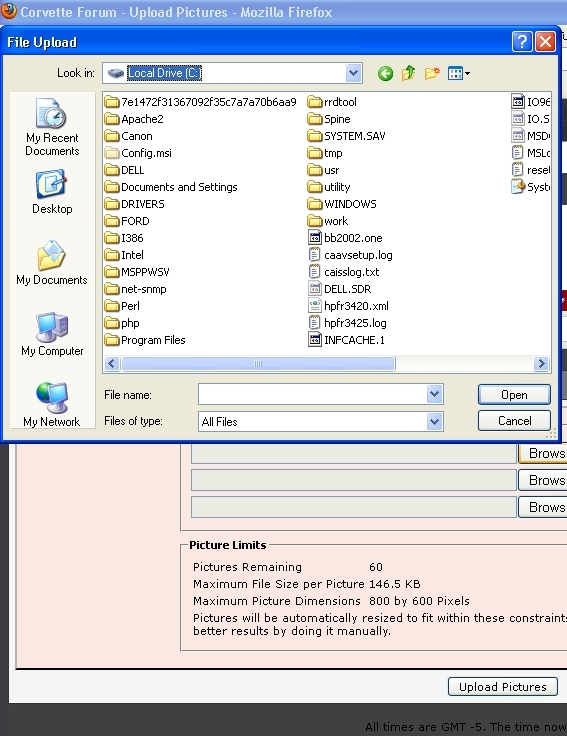
3) Locate the file from your computer that you desire to upload, select it, then click on the Open button
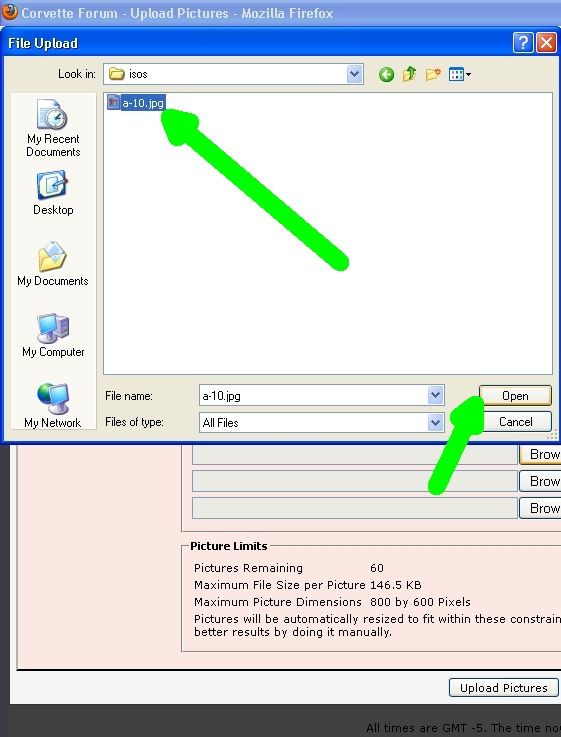
4) If you have multiple files to upload, repeat Steps 2 & 3
5) Click on the Upload Pictures button
6) You have the option of defining the cover for the Album you just created and uploaded photos to. Select the photo you desire to be the cover for the Album and then click on Save Changes button

Adding Photos to Existing Photo Album on Corvette Forum:
1) On the Navigation bar, click on the User CP link: http://forums.corvetteforum.com/usercp.php
2) Under the Networking menu on the left column, click on the Pictures & Albums link
3) Click on the name of the existing photo album that you desire to upload photos to

4) Click on Upload Pictures link

5) Click on the Browse buttons to open a new window to display the contents of your computer to locate the files you desire to upload to your Album
6) Locate the file from your computer that you desire to upload, select it, then click on the Open button
7) If you have multiple files to upload, repeat Steps 5 & 6
8) Click on the Upload Pictures button
9) You have the option of defining the cover for the Album you just created and uploaded photos to. Select the photo you desire to be the cover for the Album and then click on Save Changes button

Deleting Photos in Existing Photo Album on Corvette Forum
1) On the Navigation bar, click on the User CP link: http://forums.corvetteforum.com/usercp.php
2) Under the Networking menu on the left column, click on the Pictures & Albums link
3) Click on the name of the existing photo album that you desire to delete photos from
4) Click on the Edit Pictures link

5) Select all the photos you desire to have deleted from your album and click on Save Changes button

Adding a Vehicle to your Garage
1) Go to the Garage: http://forums.corvetteforum.com/garage/
2) Click on the Add a new vehicle link (near upper right corner)

3) Fill out the necessary information about the vehicle for Steps 1-3

4 A) Upload a photo album cover. The picture must be located on your computer. First, click on the Browse button
4 B) A browser window will open with the contents of your computer. Navigate to find the photo, select the file, then click on Open button

5) Click on Save changes
To upload photos to your Garage after completing the above steps:
1) While viewing your Garage (http://forums.corvetteforum.com/inde...&do=showportal) click on the photo album cover:

2) Click on the Upload Pictures link above or below the photo album picture:

3) Click on the Browse buttons to open a new window to display the contents of your computer to locate the files you desire to upload to your Garage

4) Click on the Upload Pictures link
5) You have the option of switching the photo album cover with any of the 3 images you previously uploaded. If you do not wish to make that change, simply click on Save Changes. If you do wish to replace the photo album cover with any of the images you previously uploaded, simply click on the "This is the album cover" radio button under the image you wish to use as the photo album and then select the Save Changes
Creating a Photo Album on Corvette Forum
1) On the Navigation bar, click on the User CP link: http://forums.corvetteforum.com/usercp.php
2) Under the Networking menu on the left column, click on the Pictures & Albums link
3) Click on the Add Album link
4) Provide a title for your Album, a brief description, select the type of Album (Public or Private) and then click on Submit button to create your Album.
Adding Photos to your Photo Album on Corvette Forum
1) Click on the Upload Pictures link to upload photos
2) Click on the Browse buttons to open a new window to display the contents of your computer to locate the files you desire to upload to your Album
3) Locate the file from your computer that you desire to upload, select it, then click on the Open button
4) If you have multiple files to upload, repeat Steps 2 & 3
5) Click on the Upload Pictures button
6) You have the option of defining the cover for the Album you just created and uploaded photos to. Select the photo you desire to be the cover for the Album and then click on Save Changes button
Adding Photos to Existing Photo Album on Corvette Forum:
1) On the Navigation bar, click on the User CP link: http://forums.corvetteforum.com/usercp.php
2) Under the Networking menu on the left column, click on the Pictures & Albums link
3) Click on the name of the existing photo album that you desire to upload photos to
4) Click on Upload Pictures link
5) Click on the Browse buttons to open a new window to display the contents of your computer to locate the files you desire to upload to your Album
6) Locate the file from your computer that you desire to upload, select it, then click on the Open button
7) If you have multiple files to upload, repeat Steps 5 & 6
8) Click on the Upload Pictures button
9) You have the option of defining the cover for the Album you just created and uploaded photos to. Select the photo you desire to be the cover for the Album and then click on Save Changes button
Deleting Photos in Existing Photo Album on Corvette Forum
1) On the Navigation bar, click on the User CP link: http://forums.corvetteforum.com/usercp.php
2) Under the Networking menu on the left column, click on the Pictures & Albums link
3) Click on the name of the existing photo album that you desire to delete photos from
4) Click on the Edit Pictures link
5) Select all the photos you desire to have deleted from your album and click on Save Changes button
Adding a Vehicle to your Garage
1) Go to the Garage: http://forums.corvetteforum.com/garage/
2) Click on the Add a new vehicle link (near upper right corner)
3) Fill out the necessary information about the vehicle for Steps 1-3
4 A) Upload a photo album cover. The picture must be located on your computer. First, click on the Browse button
4 B) A browser window will open with the contents of your computer. Navigate to find the photo, select the file, then click on Open button
5) Click on Save changes
To upload photos to your Garage after completing the above steps:
1) While viewing your Garage (http://forums.corvetteforum.com/inde...&do=showportal) click on the photo album cover:
2) Click on the Upload Pictures link above or below the photo album picture:
3) Click on the Browse buttons to open a new window to display the contents of your computer to locate the files you desire to upload to your Garage
4) Click on the Upload Pictures link
5) You have the option of switching the photo album cover with any of the 3 images you previously uploaded. If you do not wish to make that change, simply click on Save Changes. If you do wish to replace the photo album cover with any of the images you previously uploaded, simply click on the "This is the album cover" radio button under the image you wish to use as the photo album and then select the Save Changes





Thread Starter
IB Staff
Joined: Feb 2009
Posts: 10,582
Likes: 4




The larger stars indicate a member is Premium Member as defined below:
http://forums.corvetteforum.com/register.php
Means the member has an AIM profile username entered in their profile.
Thread Starter
IB Staff
Joined: Feb 2009
Posts: 10,582
Likes: 4
To avoid cluttering up this thread:
If you have a technical issue with posting pictures, please post a new thread in the Help forum using the following link:
http://forums.corvetteforum.com/newt...newthread&f=31
If you want to TEST the new picture posting, please use the Testing forum:
http://forums.corvetteforum.com/testing-68/
Thanks!
If you have a technical issue with posting pictures, please post a new thread in the Help forum using the following link:
http://forums.corvetteforum.com/newt...newthread&f=31
If you want to TEST the new picture posting, please use the Testing forum:
http://forums.corvetteforum.com/testing-68/
Thanks!