


Picture help....

Thread Starter
7th Gear

Joined: Oct 2013
Posts: 7
Likes: 0
 Picture help....
I am new to computers, and really don't understand computer vocabulary at all.
Can anybody explain how to put pictures on here, (to a non computer user).
I'm guessing its like explaining how to use a wrench to a person that has never seen one??????
Hopefully I can figure out how to find this page again so I can see if anybody answered.
Todd
Can anybody explain how to put pictures on here, (to a non computer user).
I'm guessing its like explaining how to use a wrench to a person that has never seen one??????
Hopefully I can figure out how to find this page again so I can see if anybody answered.
Todd

IB Staff


Joined: Feb 2009
Posts: 10,587
Likes: 4
1) Click on Manage Attachments below the area you type your message in as seen below:

2) Click on Browse button to locate the file on your computer as shown below:
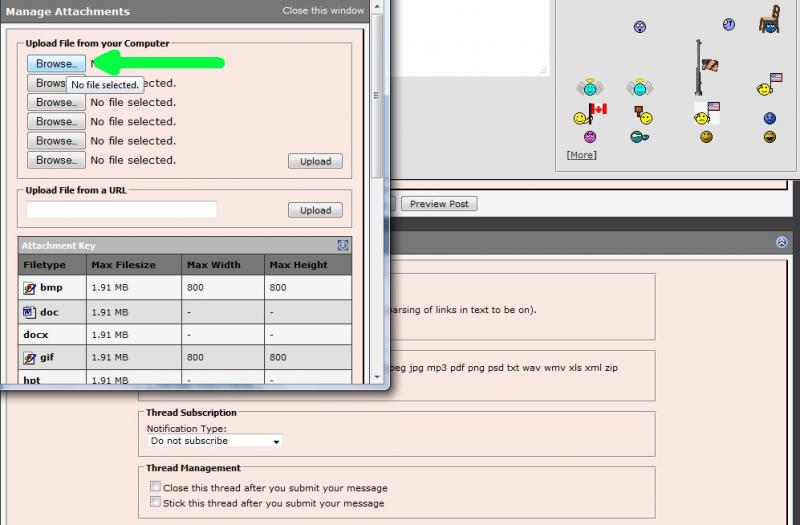
3) Locate the file on your computer, select it, then click on Open as shown below:

4) If you have more files to upload, repeat step 2 and 3
5) When finished, click on the Upload button and verify the files are listed below the Current Attachments before clicking on the Close Window as shown below:

The attachments are added to your message. You simply continue to post your message as you normally would.
I would recommend you also review the Help Guide:
http://forums.corvetteforum.com/help...elp-guide.html
2) Click on Browse button to locate the file on your computer as shown below:
3) Locate the file on your computer, select it, then click on Open as shown below:
4) If you have more files to upload, repeat step 2 and 3
5) When finished, click on the Upload button and verify the files are listed below the Current Attachments before clicking on the Close Window as shown below:
The attachments are added to your message. You simply continue to post your message as you normally would.
I would recommend you also review the Help Guide:
http://forums.corvetteforum.com/help...elp-guide.html
IB Staff
Joined: Feb 2009
Posts: 10,587
Likes: 4
IB Staff
Joined: Feb 2009
Posts: 10,587
Likes: 4
May be a browser issue or 3rd party software/security software interfering. The attachment system gets quite a bit of use so it should be workable with your computer. What browser are you using, do you have any 3rd party software installed in your browser, and what security software are you using?
Corvette Stories
The Best of Corvette for Corvette Enthusiasts

Corvette & Porsche 911: How Two Icons Conquered the Last 25 Years
Joe Kucinski
2027 Chevrolet Silverado 1500 First Look: Everything You NEED to Know!
Michael S. Palmer
5 Best & 5 Worst Corvette Daily Drivers
Joe Kucinski
The Headlights of Every Corvette Generation Explained
Joe Kucinski
5 Best & 5 Most Overrated Corvette Track Packages of All Time!
Joe Kucinski
Every 2027 Corvette Engine Explained
Joe Kucinski
Designer Imagines A Corvette That Looks More Like a Corvette Than the Corvette
Verdad Gallardo
10 Ugly Corvettes That We Still Kinda Love
Joe Kucinski
Top 10 Most Expensive Corvettes Ever Sold on Bring A Trailer
Brett Foote

Team Owner


Joined: Mar 2001
Posts: 67,046
Likes: 86
From: Santa Cruz CA
St. Jude Donor '15
Safari? 
If you've updated recently, that could be your problem. I use an IPad with Safari and videos and pictures have been a problem after I updated to iOS7. Apple has no solution...yet
If you've updated recently, that could be your problem. I use an IPad with Safari and videos and pictures have been a problem after I updated to iOS7. Apple has no solution...yet