





which digital camera?????
Melting Slicks


Joined: Jun 2007
Posts: 2,081
Likes: 8
From: San Francisco Bay Area California

Small cameras lack the weight that helps you keep them steady, so I recommend that you choose one with image stabilization for best results.
You'll have more flexibility if you choose one that gives both an optical viewfinder as well as a large (minimum 2.5 inch is best) LCD display.
BTW, Canon is the market leader for a reason! Enjoy.

Racer

Joined: Mar 2007
Posts: 465
Likes: 0
From: San Francisco Bay Area California
Yikes!!!
The OP was looking for a point-n-shoot to take some car pix and people are recommending expensive dSLRS like the 5D, 20D, Nikons. Shooting RAW, etc.
That's nuts for what was requested...
Brad
My photos: www.citysnaps.net
The OP was looking for a point-n-shoot to take some car pix and people are recommending expensive dSLRS like the 5D, 20D, Nikons. Shooting RAW, etc.
That's nuts for what was requested...
Brad
My photos: www.citysnaps.net

Team Owner


Joined: Jun 2001
Posts: 26,714
Likes: 344
From: Houston, TX
Like Stan said, I've seen fantastic photos from cheapo cameras. But the question I have revolves around photo editing programs. I find that when I take a high resolution picture - which I almost always do, then resize it to a manageable size, I loose some of the clarity. Also, I find that how I host some of my pics on the forum makes them look worse.
Any thoughts on editing programs and how to host them?
Any thoughts on editing programs and how to host them?
Racer
Joined: Mar 2007
Posts: 465
Likes: 0
From: San Francisco Bay Area California
Jim...
Depends on how much you want to spend and how deep you want to go on the learning curve.
The gold-standard is Adobe photoshop. If you're really into photography that's the way to go - it's pricey though. If not, and your use is more casual, then Adobe Elements is really good. Less than $100 but still has a lot of features. There are other low-cost image editing programs out there as well. I still come back to Adobe...
Most of the time you're doing the same 5 things on normal properly exposed pix.
1) Load it in
2) Adjust levels or curves
3) Resize/crop (say 600 x 400 pixels for web use, greater for high quality printing)
4) Sharpen
5) Output (to web, printer, email, etc)
Out of the tens of thousands of pix that I've processed, I do the same 5 steps above. Takes less than a minute with practice.
Maybe 10-20% of the time you need to work your pix more; to deal with problem areas like blown-out highlights, dodging/burning, selective sharpening over different layers, B&W conversion, pulling stuff out of the noise, etc.
After awhile it all becomes second nature and really quick.
Hope this helps, feel free to email if you more questions - this is what I do...
Brad
Urban pix: www.citysnaps.net
Depends on how much you want to spend and how deep you want to go on the learning curve.
The gold-standard is Adobe photoshop. If you're really into photography that's the way to go - it's pricey though. If not, and your use is more casual, then Adobe Elements is really good. Less than $100 but still has a lot of features. There are other low-cost image editing programs out there as well. I still come back to Adobe...
Most of the time you're doing the same 5 things on normal properly exposed pix.
1) Load it in
2) Adjust levels or curves
3) Resize/crop (say 600 x 400 pixels for web use, greater for high quality printing)
4) Sharpen
5) Output (to web, printer, email, etc)
Out of the tens of thousands of pix that I've processed, I do the same 5 steps above. Takes less than a minute with practice.
Maybe 10-20% of the time you need to work your pix more; to deal with problem areas like blown-out highlights, dodging/burning, selective sharpening over different layers, B&W conversion, pulling stuff out of the noise, etc.
After awhile it all becomes second nature and really quick.
Hope this helps, feel free to email if you more questions - this is what I do...
Brad
Urban pix: www.citysnaps.net
Racer
Joined: Mar 2007
Posts: 465
Likes: 0
From: San Francisco Bay Area California
>>> and how to host them?
Lots of choices there. You need a hosting service. I use godaddy.com. Around $3 to $4 a month. There are plenty others. You can get a domain name from them as well.
Then you need to take your collection of photos and create a web page. There are programs that will help you create the HTML using templates provided, or ones you make.
I'm Mac based and use a program called Freeway. Other options as well for both PCs and Macs. There's a freebie program that some of my buddies use called jalbum (http://jalbum.net). It's good for photos.
Once you've got your web site created, you upload it to your hosting service via FTP; using an FTP program.
Or you can just upload individual pix to Flickr if a more generic look is OK...
That's about it.
Lots of choices there. You need a hosting service. I use godaddy.com. Around $3 to $4 a month. There are plenty others. You can get a domain name from them as well.
Then you need to take your collection of photos and create a web page. There are programs that will help you create the HTML using templates provided, or ones you make.
I'm Mac based and use a program called Freeway. Other options as well for both PCs and Macs. There's a freebie program that some of my buddies use called jalbum (http://jalbum.net). It's good for photos.
Once you've got your web site created, you upload it to your hosting service via FTP; using an FTP program.
Or you can just upload individual pix to Flickr if a more generic look is OK...
That's about it.

Drifting

Joined: Sep 2007
Posts: 1,531
Likes: 152
From: Western WA
 Excellent site. constantly updated.
Take a few minutes to go through exactly what you want in your P&S camera...long zoom range or pocketability, etc. Then go to the above site and check out the information. Then do some shopping; Costco, or some of the camera shops that advertise in Popular Photography magazine (available at your local library or news stand).
Good hunting. Now you know, that we'll be looking for some great pix soon.

Corvette Stories
The Best of Corvette for Corvette Enthusiasts

How Much Horsepower Every Corvette Engine "LOST" in 1972
Joe Kucinski
Top 10 DOs and DON'Ts for Protecting Your Convertible Top!
Michael S. Palmer
Top 10 Most Explosive Corvettes Ever Made: Power-to-Weight Ratio Ranked!
Joe Kucinski
150 hp to 1,250 hp: Every Corvette Generation Compared by the Specs That Matter
Joe Kucinski
8 Coolest Corvette Pace Cars (and Replicas) of All Time
Verdad Gallardo
Top 10 Corvette Engines RANKED by Peak Torque (70+ Years of Muscle!)
Joe Kucinski
Corvette ZR1X Will Be Pacing the Indy 500, And Could Probably Race, Too!
Verdad Gallardo
Top 10 Corvettes Coming to Mecum Indy 2026!
Brett Foote
Top 10 C9 Corvette MUST-HAVES to Fix These C8 Generation Flaws!
Michael S. Palmer
Melting Slicks
Joined: Jun 2007
Posts: 2,081
Likes: 8
From: San Francisco Bay Area California
Like Stan said, I've seen fantastic photos from cheapo cameras. But the question I have revolves around photo editing programs. I find that when I take a high resolution picture - which I almost always do, then resize it to a manageable size, I loose some of the clarity. Also, I find that how I host some of my pics on the forum makes them look worse.
Any thoughts on editing programs and how to host them?
Any thoughts on editing programs and how to host them?
http://www.microsoft.com/windowsxp/u...schelman2.mspx
You just right click the file you want to resize and choose "Resize." Then you select the size you want. That's all there is to it! The picture resizer doesn't overwrite your original file. Instead it creates a new file with the same name and the addition of the size information from the size you chose.
Take a look at my Corvette Photos on the Forum. Those were all resized using the Microsoft picture resizer.
I've been happy with Photobucket for hosting pics. Once your pic is uploaded to the photobucket site, all you have to do is click the last choice for sharing and it automatically copies the correct html code for the forum to your clipboard. Then when you post, you just right click where you want the picture to appear and select 'paste.' It couldn't be easier.
By the way if you decide to choose a Canon camera, their included editing software is very good. Google's Picasa is free and easy to use as well. Another good freebie that I use for quick crops because it loads instantly is IrfanView. Enjoy!

Last edited by carnut08; Nov 17, 2007 at 05:15 PM. Reason: Additional info.

Instructor
Joined: Jan 2007
Posts: 190
Likes: 0
From: Alabama, Georgia, Hawaii
For point and shoot I'd recommend the Canon SD1000. I have a SD600 but just bought my sister a SD1000, 7mp, with a 1gb card and case for $168 shipped. Can't beat it (special on Newegg). DSLR-wise i'm debating between Canon Rebel XT/XTi and Nikon D80. In addition to dpreview, CNET.com has pretty good info.

Racer

Joined: Sep 2004
Posts: 440
Likes: 11
From: Amelia Island
Team Owner
Joined: Jun 2001
Posts: 26,714
Likes: 344
From: Houston, TX
Jim...
Depends on how much you want to spend and how deep you want to go on the learning curve.
The gold-standard is Adobe photoshop. If you're really into photography that's the way to go - it's pricey though. If not, and your use is more casual, then Adobe Elements is really good. Less than $100 but still has a lot of features. There are other low-cost image editing programs out there as well. I still come back to Adobe...
Most of the time you're doing the same 5 things on normal properly exposed pix.
1) Load it in
2) Adjust levels or curves
3) Resize/crop (say 600 x 400 pixels for web use, greater for high quality printing)
4) Sharpen
5) Output (to web, printer, email, etc)
Out of the tens of thousands of pix that I've processed, I do the same 5 steps above. Takes less than a minute with practice.
Maybe 10-20% of the time you need to work your pix more; to deal with problem areas like blown-out highlights, dodging/burning, selective sharpening over different layers, B&W conversion, pulling stuff out of the noise, etc.
After awhile it all becomes second nature and really quick.
Hope this helps, feel free to email if you more questions - this is what I do...
Brad
Urban pix: www.citysnaps.net
Depends on how much you want to spend and how deep you want to go on the learning curve.
The gold-standard is Adobe photoshop. If you're really into photography that's the way to go - it's pricey though. If not, and your use is more casual, then Adobe Elements is really good. Less than $100 but still has a lot of features. There are other low-cost image editing programs out there as well. I still come back to Adobe...
Most of the time you're doing the same 5 things on normal properly exposed pix.
1) Load it in
2) Adjust levels or curves
3) Resize/crop (say 600 x 400 pixels for web use, greater for high quality printing)
4) Sharpen
5) Output (to web, printer, email, etc)
Out of the tens of thousands of pix that I've processed, I do the same 5 steps above. Takes less than a minute with practice.
Maybe 10-20% of the time you need to work your pix more; to deal with problem areas like blown-out highlights, dodging/burning, selective sharpening over different layers, B&W conversion, pulling stuff out of the noise, etc.
After awhile it all becomes second nature and really quick.
Hope this helps, feel free to email if you more questions - this is what I do...
Brad
Urban pix: www.citysnaps.net
Team Owner
Joined: Jun 2001
Posts: 26,714
Likes: 344
From: Houston, TX
The easiest and most effective way to resize your pictures is to use Microsoft's picture resizer. This is a free tool for Windows XP and you can get it here:
http://www.microsoft.com/windowsxp/u...schelman2.mspx
You just right click the file you want to resize and choose "Resize." Then you select the size you want. That's all there is to it! The picture resizer doesn't overwrite your original file. Instead it creates a new file with the same name and the addition of the size information from the size you chose.
Take a look at my Corvette Photos on the Forum. Those were all resized using the Microsoft picture resizer.
I've been happy with Photobucket for hosting pics. Once your pic is uploaded to the photobucket site, all you have to do is click the last choice for sharing and it automatically copies the correct html code for the forum to your clipboard. Then when you post, you just right click where you want the picture to appear and select 'paste.' It couldn't be easier.
By the way if you decide to choose a Canon camera, their included editing software is very good. Google's Picasa is free and easy to use as well. Another good freebie that I use for quick crops because it loads instantly is IrfanView. Enjoy!
http://www.microsoft.com/windowsxp/u...schelman2.mspx
You just right click the file you want to resize and choose "Resize." Then you select the size you want. That's all there is to it! The picture resizer doesn't overwrite your original file. Instead it creates a new file with the same name and the addition of the size information from the size you chose.
Take a look at my Corvette Photos on the Forum. Those were all resized using the Microsoft picture resizer.
I've been happy with Photobucket for hosting pics. Once your pic is uploaded to the photobucket site, all you have to do is click the last choice for sharing and it automatically copies the correct html code for the forum to your clipboard. Then when you post, you just right click where you want the picture to appear and select 'paste.' It couldn't be easier.
By the way if you decide to choose a Canon camera, their included editing software is very good. Google's Picasa is free and easy to use as well. Another good freebie that I use for quick crops because it loads instantly is IrfanView. Enjoy!

Lepus-temperamentalus

Joined: Apr 2004
Posts: 5,827
Likes: 5
From: Roswell Ga
While Canon, Sony and Samsung all have excellent competitors to the Lumix, it's the only one with a 28mm wide angle lens and Leica "face finder" technology. Do a search with Comsumer Reports, Digital Photography and PC magazine and they all agree that the Lumix is no. 1 for the money.

Safety Car


Joined: Jun 2006
Posts: 3,605
Likes: 2
From: Latrobe PA
Jim...
Depends on how much you want to spend and how deep you want to go on the learning curve.
The gold-standard is Adobe photoshop. If you're really into photography that's the way to go - it's pricey though. If not, and your use is more casual, then Adobe Elements is really good. Less than $100 but still has a lot of features. There are other low-cost image editing programs out there as well. I still come back to Adobe...
Most of the time you're doing the same 5 things on normal properly exposed pix.
1) Load it in
2) Adjust levels or curves
3) Resize/crop (say 600 x 400 pixels for web use, greater for high quality printing)
4) Sharpen
5) Output (to web, printer, email, etc)
Out of the tens of thousands of pix that I've processed, I do the same 5 steps above. Takes less than a minute with practice.
Maybe 10-20% of the time you need to work your pix more; to deal with problem areas like blown-out highlights, dodging/burning, selective sharpening over different layers, B&W conversion, pulling stuff out of the noise, etc.
After awhile it all becomes second nature and really quick.
Hope this helps, feel free to email if you more questions - this is what I do...
Brad
Urban pix: www.citysnaps.net
Depends on how much you want to spend and how deep you want to go on the learning curve.
The gold-standard is Adobe photoshop. If you're really into photography that's the way to go - it's pricey though. If not, and your use is more casual, then Adobe Elements is really good. Less than $100 but still has a lot of features. There are other low-cost image editing programs out there as well. I still come back to Adobe...
Most of the time you're doing the same 5 things on normal properly exposed pix.
1) Load it in
2) Adjust levels or curves
3) Resize/crop (say 600 x 400 pixels for web use, greater for high quality printing)
4) Sharpen
5) Output (to web, printer, email, etc)
Out of the tens of thousands of pix that I've processed, I do the same 5 steps above. Takes less than a minute with practice.
Maybe 10-20% of the time you need to work your pix more; to deal with problem areas like blown-out highlights, dodging/burning, selective sharpening over different layers, B&W conversion, pulling stuff out of the noise, etc.
After awhile it all becomes second nature and really quick.
Hope this helps, feel free to email if you more questions - this is what I do...
Brad
Urban pix: www.citysnaps.net
Racer
Joined: Mar 2007
Posts: 465
Likes: 0
From: San Francisco Bay Area California
>>> It just annoys the crap out of me when I look at a high res picture that looks perfect, then after I resize and crop it, it just doesn't look as sharp.
When you downrez (decimation), you need to sharpen a bit afterwards. Uprezzing (interpolation), a bit of smoothing is called for. These options are available as Bicubic Sharper and Bicubic Smoother in the Image Size panel.

When you downrez (decimation), you need to sharpen a bit afterwards. Uprezzing (interpolation), a bit of smoothing is called for. These options are available as Bicubic Sharper and Bicubic Smoother in the Image Size panel.

Melting Slicks
Joined: Aug 2007
Posts: 2,236
Likes: 0
Like Stan said, I've seen fantastic photos from cheapo cameras. But the question I have revolves around photo editing programs. I find that when I take a high resolution picture - which I almost always do, then resize it to a manageable size, I loose some of the clarity. Also, I find that how I host some of my pics on the forum makes them look worse.
Any thoughts on editing programs and how to host them?
Any thoughts on editing programs and how to host them?
I get asked this all the time. First thing to do is to simply do a check on your color space. If you are using Photoshop CS3 and Adobe Bridge to do your color processing workflow, all your JPEGs will be saved as Adobe RGB color space. This is technically the right move since it is a superior color space and will simplify your workflow when it comes time to publishing but the problem is that Web browsers render Adobe RGB badly. So when you are posting on the Internet the colors look washed out when it was saturated during processing. The solution is actually quite simple - save pictures you wish to present on the Web in sRGB color space.
One other thing to note - if you use color correction for your monitor, consider saving the default monitor ICM profile so that you can see what other people who do not do color matching (that would be probably 90% of the Internet population) would see. The caveat of using a monitor profile is that while you and the publishers will see the same result and get consistent printing, everyone else will see a result that is skewed temperature-wise.
Hope this helps.
(Short answer: save your photos as sRGB instead of Adobe RGB if you are using CS3).
Team Owner
Joined: Aug 2002
Posts: 35,617
Likes: 167
Tech Contributor
Cruise-In 11 Veteran
NCM Ambassador
St. Jude Donor '05-'06-'07-'10
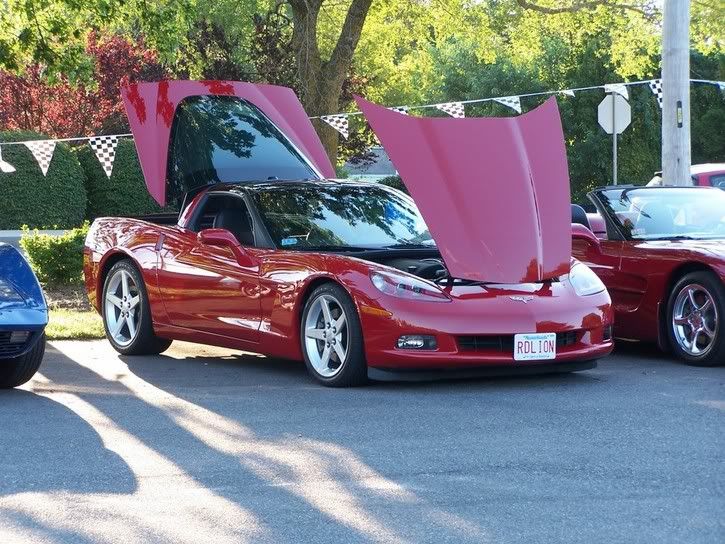
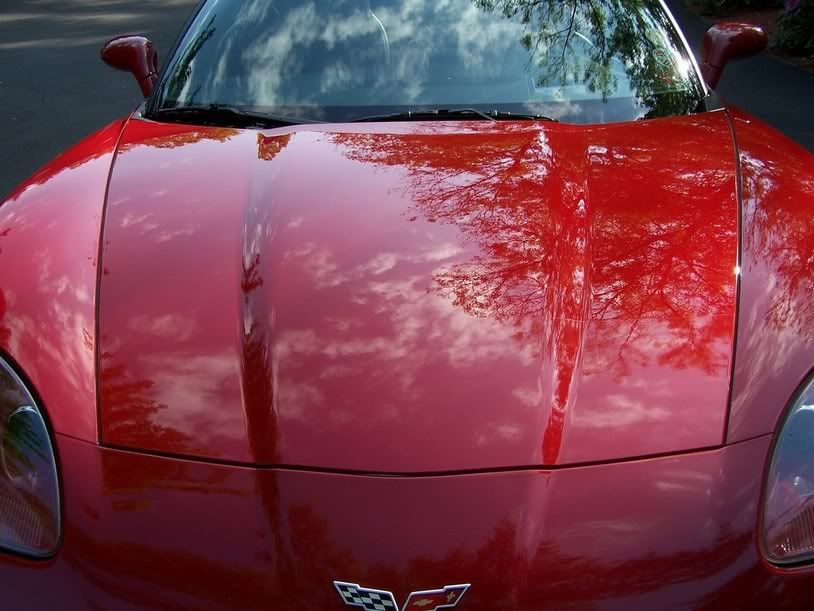
Canon are good cameras but for my money I've been quite happy as well with the higher end models of the Kodak family of digital cameras. I currently use Kodak DX7530 and love it!
Through aquarium glass


Through aquarium glass
Pro

Joined: Mar 2006
Posts: 671
Likes: 0
From: Antelope CA
Thanks! I've done a lot of what you are saying also. It just seems that some programs are better than others when resizing. I may give Adobe a try. It just annoys the crap out of me when I look at a high res picture that looks perfect, then after I resize and crop it, it just doesn't look as sharp.
I think the correct order is: Be sure you crop before resize.
1) crop
2) resize say 800x600, @ 72 or 96 dpi
4) sharpen a bit, and view at 100% to see true results
3) save as, or for web, jpg quality about 80 percent
Depending on the complexity of the image, the above processes should give you a file size between 80k - 120k. If your sizes are much smaller do less JPG compression and check your dpi or ppi.
If you keep making changes to the same photo, and save as with JPG compression, the image will degrade each time. Do all your processing with that photo and save first, before resizing smaller, with the highest quality jpg for making a print later. Then you can open that one and resize once and sharpen a bit for the web.
If you need to make editing changes later, start from the origional. Or if you know you will make changes later, save as PSD for Photoshop to keep layers open, or if not using layers save as Tiff. not JPG.
I use Photoshop for the inital editing and croping and save as highest quality jpeg. Later I'll batch resize for the web using "irafanview" a free program. It is a really slick program for many things, I use it to make slide shows with music too. I just started using photobucket also, really easy to embed images for the web.
Good luck, hope this helps
Greg
Melting Slicks
Joined: Jun 2007
Posts: 2,081
Likes: 8
From: San Francisco Bay Area California
My experience (I bought Kodak equipment for my Mom due to its cool simplicity) is that Kodak Easy Share software is buggy and unreliable compared to just about any other photo editing software available. I really hate to say that since I've loved Kodak film forever, but I've been around the digital block since it began and Kodak is well behind the curve.
Just my .02
Last edited by carnut08; Nov 18, 2007 at 12:11 AM.