


Can I get some help?



Safety Car


Joined: Jul 2009
Posts: 3,755
Likes: 190
From: Baton Rouge LA
St. Jude Donor '14, '16

Absolutely.
Head here: http://imgur.com/ and click "computer" then select your photos. After they are uploaded you will be brought to a page with several different links, select the ones that look like "[ img]link to photo[/ img]" and paste them into a thread here.
Head here: http://imgur.com/ and click "computer" then select your photos. After they are uploaded you will be brought to a page with several different links, select the ones that look like "[ img]link to photo[/ img]" and paste them into a thread here.

IB Staff


Joined: Feb 2009
Posts: 10,585
Likes: 4
You can upload them to CorvetteForum as Attachments:
1) Click on Manage Attachments below the area you type your message in as seen below:

2) Click on Browse button to locate the file on your computer as shown below:
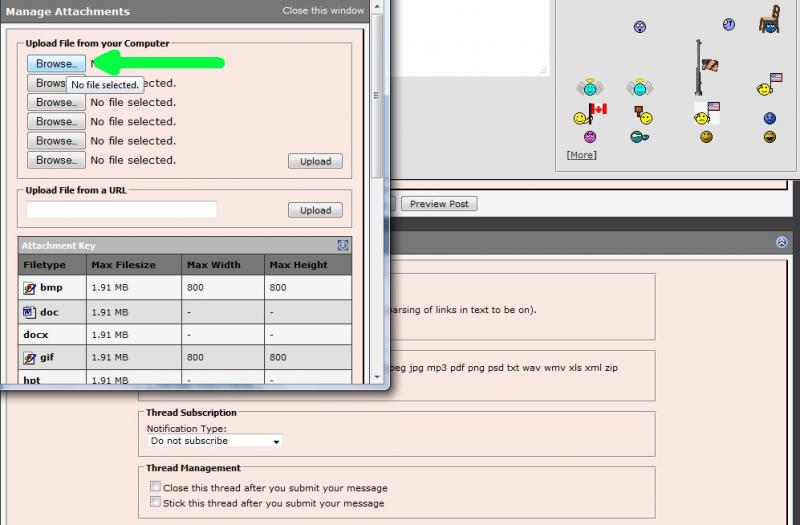
3) Locate the file on your computer, select it, then click on Open as shown below:

4) If you have more files to upload, repeat step 2 and 3
5) When finished, click on the Upload button and verify the files are listed below the Current Attachments before clicking on the Close Window as shown below:

The attachments are added to your message. You simply continue to post your message as you normally would.
I would recommend you also review the Help Guide:
http://forums.corvetteforum.com/help...elp-guide.html
1) Click on Manage Attachments below the area you type your message in as seen below:
2) Click on Browse button to locate the file on your computer as shown below:
3) Locate the file on your computer, select it, then click on Open as shown below:
4) If you have more files to upload, repeat step 2 and 3
5) When finished, click on the Upload button and verify the files are listed below the Current Attachments before clicking on the Close Window as shown below:
The attachments are added to your message. You simply continue to post your message as you normally would.
I would recommend you also review the Help Guide:
http://forums.corvetteforum.com/help...elp-guide.html
Absolutely.
Head here: http://imgur.com/ and click "computer" then select your photos. After they are uploaded you will be brought to a page with several different links, select the ones that look like "[ img]link to photo[/ img]" and paste them into a thread here.
Head here: http://imgur.com/ and click "computer" then select your photos. After they are uploaded you will be brought to a page with several different links, select the ones that look like "[ img]link to photo[/ img]" and paste them into a thread here.


Administrator


Joined: Aug 1999
Posts: 67,495
Likes: 1,976
From: Chattanooga, TN
CI 2-3-4-5-6-7-8-9-10-11-12
Wounded Warrior Escort '11
St. Jude Donor '03 thru '26
NCM Lifetime Member
NCM Sinkhole Donor
 Try it and see if it works.
Administrator
Joined: Aug 1999
Posts: 67,495
Likes: 1,976
From: Chattanooga, TN
CI 2-3-4-5-6-7-8-9-10-11-12
Wounded Warrior Escort '11
St. Jude Donor '03 thru '26
NCM Lifetime Member
NCM Sinkhole Donor
Sorry, I misread the post. I was thinking along the lines of uploading the pictures to corvetteforum and then embedding them in a post with the URL created when you upload them to your gallery. It is correct that attaching pictures to posts has not been possible except by supporting members until very recently.

Safety Car
Joined: Jul 2009
Posts: 3,755
Likes: 190
From: Baton Rouge LA
St. Jude Donor '14, '16
You can upload them to CorvetteForum as Attachments:
1) Click on Manage Attachments below the area you type your message in as seen below:
2) Click on Browse button to locate the file on your computer as shown below:
3) Locate the file on your computer, select it, then click on Open as shown below:
4) If you have more files to upload, repeat step 2 and 3
5) When finished, click on the Upload button and verify the files are listed below the Current Attachments before clicking on the Close Window as shown below:
The attachments are added to your message. You simply continue to post your message as you normally would.
I would recommend you also review the Help Guide:
http://forums.corvetteforum.com/help...elp-guide.html
1) Click on Manage Attachments below the area you type your message in as seen below:
2) Click on Browse button to locate the file on your computer as shown below:
3) Locate the file on your computer, select it, then click on Open as shown below:
4) If you have more files to upload, repeat step 2 and 3
5) When finished, click on the Upload button and verify the files are listed below the Current Attachments before clicking on the Close Window as shown below:
The attachments are added to your message. You simply continue to post your message as you normally would.
I would recommend you also review the Help Guide:
http://forums.corvetteforum.com/help...elp-guide.html